Fix a public Wi-Fi login page that will not appear on Mac

Your Mac can show that it joined a cafe, hotel, or airport Wi-Fi network while the internet still does not work. Usually the network is waiting for a captive-portal login page that never appeared. Keepresso's Public Wi-Fi assistant checks that situation and puts the safe recovery steps together in one small window.
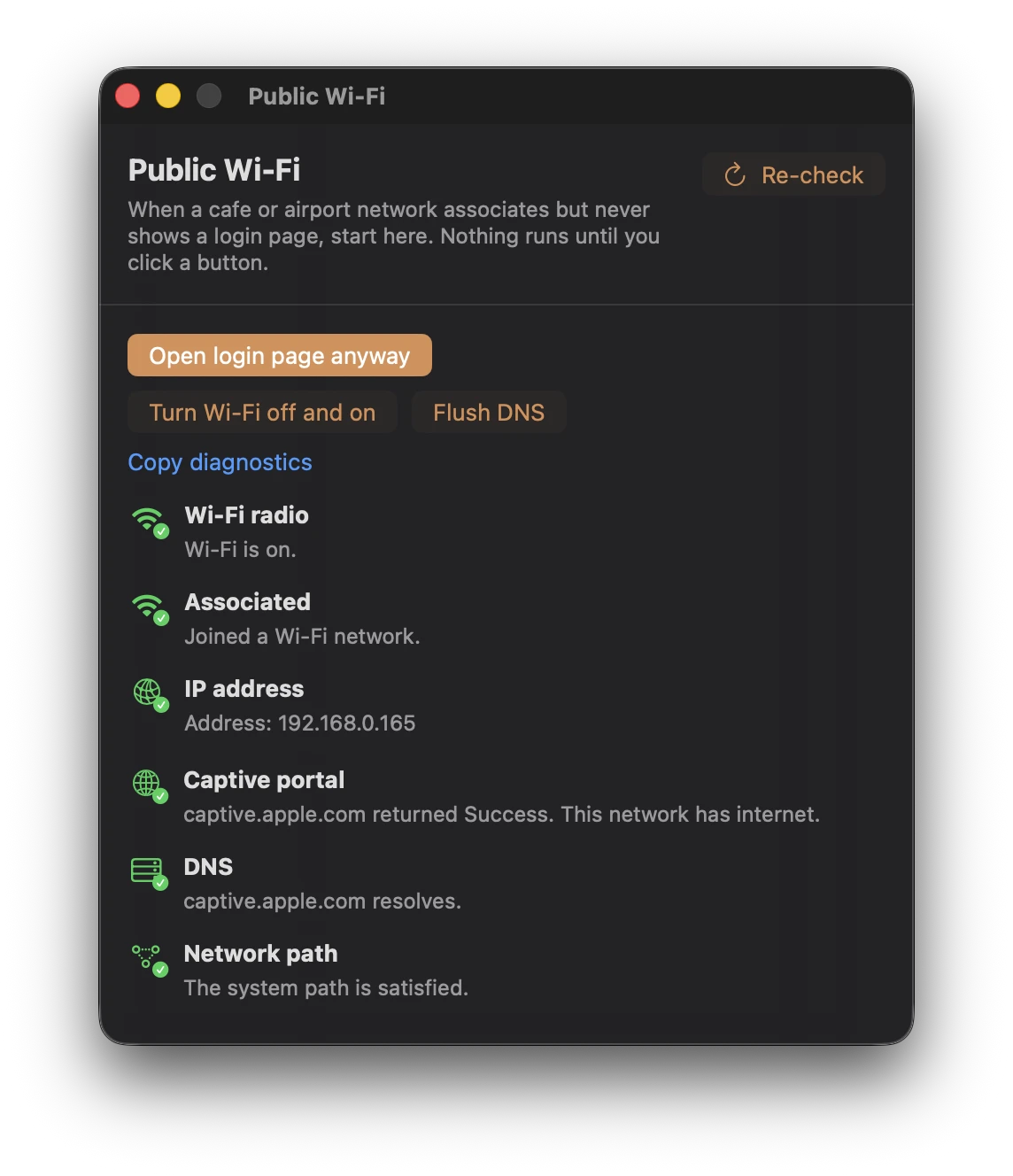
Open the Public Wi-Fi assistant
- Join the public network from macOS as usual.
- Right-click or Control-click the Keepresso cup in the menu bar.
- Choose Public Wi-Fi….
Opening the window does not change the network, request Location access, or ask for an administrator password. It checks the current association, Apple's captive-network endpoint, DNS, the system network path, Private Wi-Fi Address, and whether a VPN may be getting in the way. Nothing is changed until you click an action.
Try the actions in order
1. Open the login page
Click Open login page. Keepresso opens macOS's Captive Network Assistant when it is available, falling back to Apple's unencrypted captive-portal test page in your browser. Using an http:// page is deliberate here: a captive network can intercept it and redirect you to its sign-in page.
If Keepresso discovered the portal's own URL, Open portal URL goes directly there.
2. Turn Wi-Fi off and on
If the portal still does not appear, click Turn Wi-Fi off and on. Keepresso cycles the active Wi-Fi interface and checks the connection again. If macOS refuses the change, it copies the equivalent command so you can review and run it yourself.
3. Flush DNS
A stale or unreachable DNS result can leave the Mac associated while the login page goes nowhere. Click Flush DNS to clear the cache and re-check.
DNS flushing needs administrator rights. With Keepresso's helper installed it happens silently. Otherwise the assistant copies the standard command to the clipboard instead of running anything unseen.
If it still does not connect
- Temporarily disconnect a VPN. Captive portals often cannot redirect traffic through a tunnel.
- Check the assistant's Private Wi-Fi Address note. Some networks remember a previous address and treat a rotated address as a different device.
- Forget the network in System Settings, join it again, and reopen the assistant.
- Ask the venue whether the network or portal is currently down.
Use Copy diagnostics if you need to send the checks to support. The report describes the connection state; it does not include a password or the contents of your traffic.
Keepresso helps reach the network's real login flow. It does not bypass access terms, payment, device limits, or authentication.
Related
Get Keepresso
Free and open source, for macOS 14 and newer. Install it and keep your Mac awake on your terms.
More in Troubleshooting