Keep awake only when it matters, with smart triggers
Smart triggers let Keepresso decide when to keep your Mac awake, instead of you flipping it on and off. You pick one or more conditions, and Keepresso holds the Mac up only while they are true, then steps back and lets it sleep normally.
The conditions you can use
- Power: on AC power, on battery, or charging.
- External display connected.
- Wi-Fi network: on a network you name (reading the network name needs Location access).
- App running or frontmost: while a chosen app is open, or only while it is in front.
- Process running: match any command line, for example
node,python, orffmpeg. - AI agent working: while a coding agent (
claude,cursor,codex,gemini,pi, and friends) is actually working, not just sitting open. Once every session goes idle, the Mac may sleep after a short grace you pick. Connect Claude Code, Cursor, Codex, or Antigravity under the AI agent condition for exact session state, including the agents built into the Cursor and Antigravity apps, which have no process of their own to watch. For unattended overnight runs, an option can count a session waiting at a prompt as still working. - Camera or microphone in use: the basis of the Meetings preset. No camera or mic permission needed.
- Microphone in use by app: narrower than the above, hold awake only while a chosen app has the mic, that is, while it is on a call (Slack, Discord, Zoom, and the like), so a foreground app or an always-connected external mic does not count on its own. No permission needed.
- Audio playing: while sound is coming out, with a short grace period for track gaps.
- VPN connected.
- CPU above a threshold: 25, 50, 75, or 90 percent, smoothed so a brief spike does not start a session.
- Volume mounted: while a chosen external drive, SD card, or network share is connected.
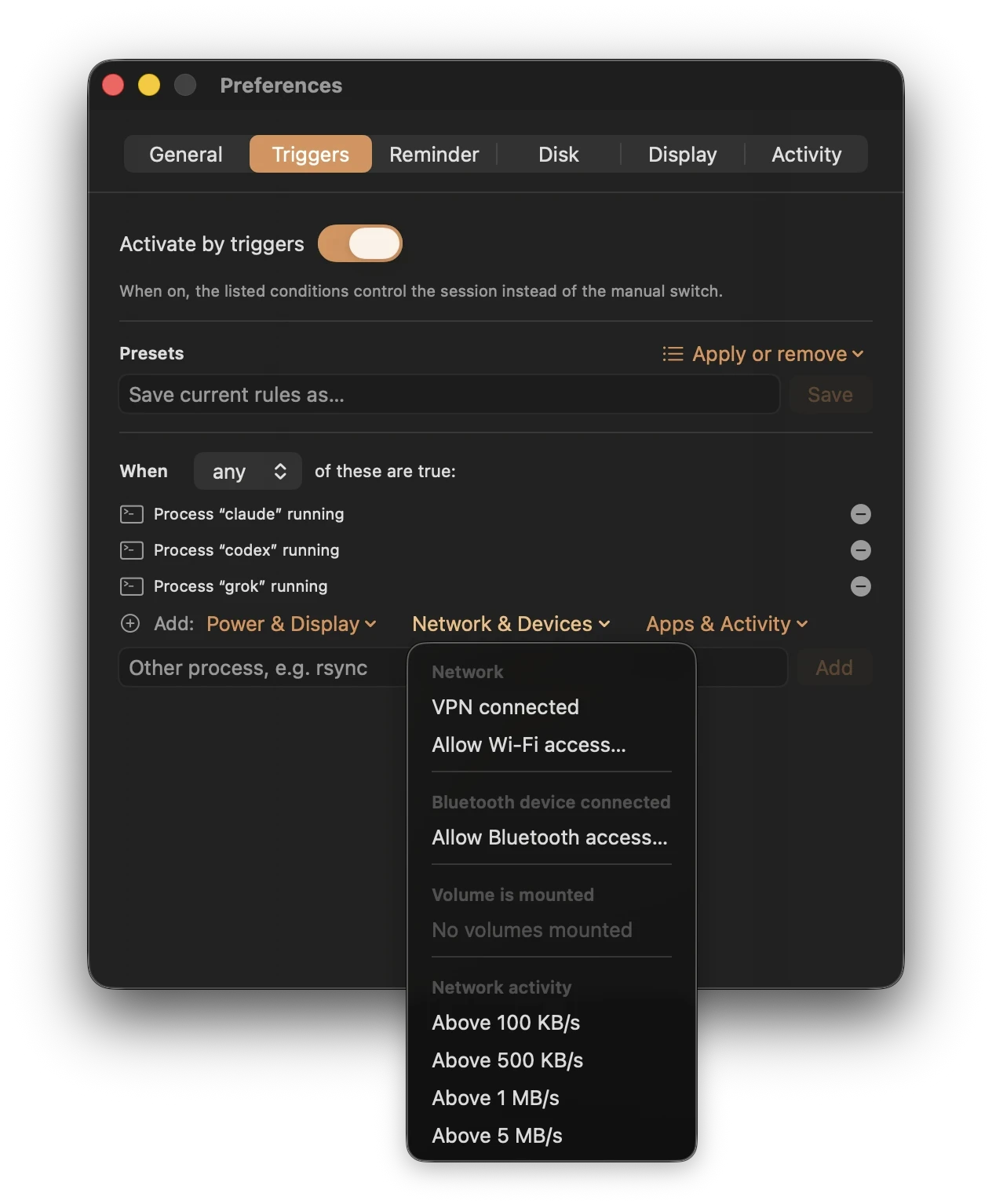
- Network activity above a threshold: while the network is moving data faster than a rate you choose (100 KB/s, 500 KB/s, 1 MB/s, or 5 MB/s), so a big upload or download holds the Mac up, then it stands down once traffic drops.
- Downloads in a watched folder: point Keepresso at a folder such as Downloads and it stays awake while a file is actively landing there.
- Bluetooth device connected: while a paired device is in range, with a 30 second grace period so a brief drop does not end the session.
- Schedule: a daily time window on the days you choose, including overnight windows that cross midnight.
- Calendar event: while an event is on your Mac's calendar, so a meeting or a booked block holds it awake.
- Playing a game: while a Steam title or a cloud client (GeForce NOW, Boosteroid, Parsec, Moonlight, Shadow) is running. See Fix gaming and streaming lag.
- Game controller connected: while any gamepad is on: DualSense, Xbox, even the Steam Controller, which macOS itself never reports as one. Detected permission-free at the hardware level, and only while the controller is actually on, not just its receiver plugged in.
- Steam is downloading: while a game is actually downloading or updating in any Steam library, then the Mac may sleep once it finishes or you pause it. No permission needed.
Combine them your way
Set conditions to combine with any (stay awake if at least one is true) or all (only while every one is true). An app trigger can also linger for a few seconds after its condition goes false, so a quick blip does not cut the session short.
The Add condition menu groups everything into Power & Display, Network & Devices, and Apps & Activity, so the list stays short as it grows.
One-click presets
If you would rather not build a rule from scratch, apply a preset:
- AI Agent: while a coding agent is actually working, not just running, so an agent left open does not pin the Mac awake around the clock.
- Meetings: while the camera or microphone is in use.
- On AC Power: while plugged in.
- External Display Connected.
- Remote Session (SSH): only during an active SSH connection, not the idle listener.
- Backup Running: during a Time Machine backup. Walkthrough: Time Machine and long backups.
- Media Render: while
ffmpegis running. - Gaming: a session end to end: playing (or a cloud client), a controller in hand, a Steam download running, or sustained traffic above 1 MB/s (launcher patches).
- Cloud Gaming / Remote Control: while a cloud gaming or remote-desktop client is in front. Cloud Gaming includes the controller condition, and stays awake through a Steam download too.
Applying a preset replaces your current rule set and turns trigger gating on.
Guard the battery on a power trigger
If you keep awake only while charging or on AC, pair it with battery-aware auto-pause. Pick a floor (10, 15, 20, 30, or 50 percent) and Keepresso stops the session and lets the Mac sleep if the charge drops below it, then holds off until it recovers. So a session you forgot about on battery can never run the pack flat. A common setup: stay awake on power for downloads and builds, with auto-pause at 20 percent as a safety net.
See what is holding it on
The menu shows the live conditions currently keeping the session up, and a Pause Triggers button suspends the whole engine for a moment without touching your saved rules. If a session is not behaving, My Mac still goes to sleep has the checklist.
Triggers can also announce themselves: an event hook under Preferences, Automation runs a Shortcut, POSTs a webhook, or runs a shell command when a trigger fires or releases. See event hooks.
Get Keepresso
Free and open source, for macOS 14 and newer. Install it and keep your Mac awake on your terms.
More in Using Keepresso