Fix cloud gaming and streaming lag on a Mac

Periodic ping spikes can come from AWDL, the peer-to-peer layer used by features such as AirDrop and Sidecar. It shares the Mac's Wi-Fi radio, and off-channel activity can interrupt traffic. Congestion, interference, the router and the route to your game server can cause similar symptoms, so a periodic spike alone does not establish the cause.
Keepresso's Gaming & Streaming window helps you test the connection and pause AWDL for a session. The useful comparison is how your own connection behaves before, during and after the pause.
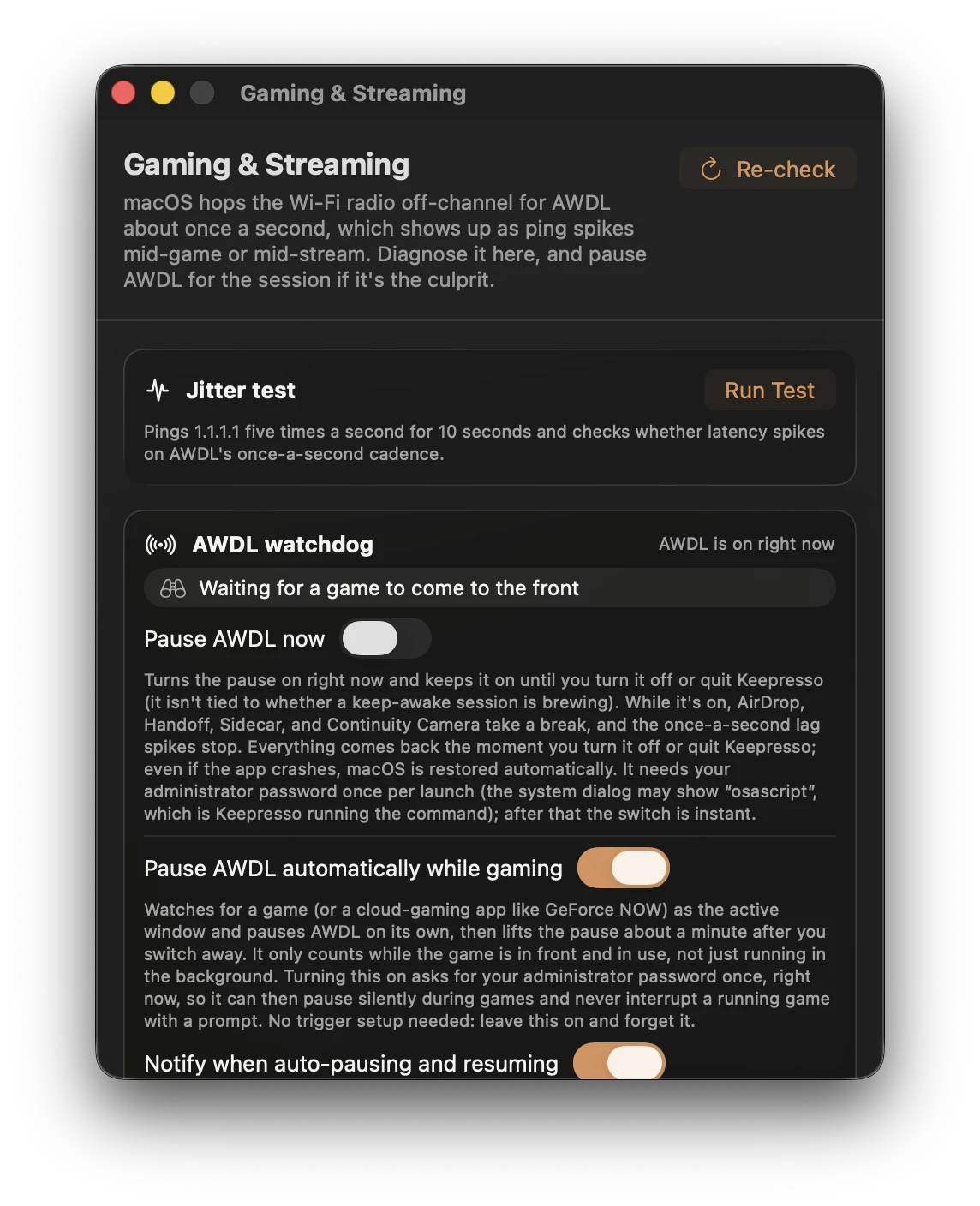
Open it
Click the cup in the menu bar and choose Gaming & Streaming. The window opens with a short read on what AWDL is doing right now, and a Re-check button to refresh the state.
Test for it first
Under Jitter test, press Run Test. It pings 1.1.1.1 five times a second for ten seconds and looks for periodic spikes. Treat the result as a short diagnostic sample, not proof that AWDL is or is not responsible.
- Run the test with AWDL active and note the result.
- Pause AWDL, keep the same Wi-Fi connection and background workload, and repeat the test several times.
- Restore AWDL and check whether the spikes return.
- Compare the game's or streaming client's own latency and dropped-frame readings too. A ping to
1.1.1.1does not measure the route to every game server.
If you share results, include the Mac model, macOS version, Wi-Fi band, router, test duration and whether a VPN was active. A single before/after run does not establish a general speed improvement.
Pause AWDL for the session
Turn on Pause AWDL while Keepresso runs. Features that rely on AWDL, including AirDrop and Sidecar, may be unavailable during the pause. Keepresso restores AWDL when you turn the pause off or quit. Check the live status and restore AWDL before troubleshooting a missing Continuity feature. Approve the administrator helper once to avoid repeated password prompts; without the helper, macOS asks for your administrator password the first time after each launch.
Prefer it to happen on its own? Turn on Pause AWDL automatically while gaming. It flips the pause on when a game is keeping your Mac awake and back off when you stop. That needs a Playing a game condition in Preferences, Triggers, which detects Steam titles and cloud clients like GeForce NOW, Boosteroid, Parsec, Moonlight, and Shadow. A live status shows AWDL paused or in its grace countdown, and you can have Keepresso notify you each time auto mode pauses or resumes. You can also set how long it waits before bringing AWDL back after you leave a game, from 10 seconds to 5 minutes, so a quick alt-tab does not flap the radios while AirDrop and Handoff still return as fast as you like.
One preset for the whole session
The built-in Gaming preset in Preferences, Triggers covers a session end to end, so you do not assemble the conditions yourself: playing a game (or a cloud client), a game controller connected, a Steam download running, or sustained traffic above 1 MB/s for launcher patches. The controller condition counts any connected gamepad, DualSense, Xbox, even the Steam Controller, which macOS itself never reports as one, detected permission-free at the hardware level. An opt-in switch also reports user activity during controller play, so a gamepad-only session stops dimming the display mid-game. And the Steam-download condition keeps the Mac awake while a game downloads or updates in any Steam library, then lets it sleep once the transfer finishes.
Give the game the CPU
The same window has an opt-in high CPU priority switch: while you play, Keepresso raises the active game or streaming client's CPU priority through the administrator helper. This changes CPU scheduling priority; it does not reserve the CPU or guarantee a frame rate. Compare it under your usual workload. Normal priority comes back when you stop playing, and always when the game quits.
Before you blame Wi-Fi
The same window runs a couple of radio-hygiene checks. Two are worth acting on:
- Compare Ethernet. If an adapter is available, repeat the test over a cable to remove Wi-Fi radio contention from that connection. The improvement depends on the source of the problem.
- Check your Wi-Fi connection. Compare bands, signal strength and local congestion. Keepresso suggests channels for your region, but a particular channel or width is not best for every router and environment. Change one setting at a time and retest.
For the full background on AWDL, the manual sudo ifconfig awdl0 down fix, and NVIDIA's own advice, see the deep-dive write-up: Fixing macOS Wi-Fi lag and ping spikes for cloud gaming.
Get Keepresso
Free and open source, for macOS 14 and newer. Install it and keep your Mac awake on your terms.
More in Using Keepresso