Stop Teams, Slack, and VDI marking you away

You are on a call, reading a long document, or watching a build scroll by, and the moment you stop touching the trackpad your status flips to Away. Worse, some corporate setups take it further: a VDI or remote-desktop session locks, disconnects, or logs you out entirely once it decides you are idle. Keepresso's Keep me active mode fixes this by reporting activity to macOS, so everything that watches for idle keeps seeing you as present.
Turn it on
Open Preferences, General, turn on Keep me active, and choose a method. From then on, while a Keepresso session is running, your Mac reports steady activity to the system, and the apps and services that key off idle time keep seeing you as present.
It is a normal Keepresso session, so you can leave it on, put it on a timer, or let a trigger run it. Turn it off and your Mac goes back to reporting idle time as usual.
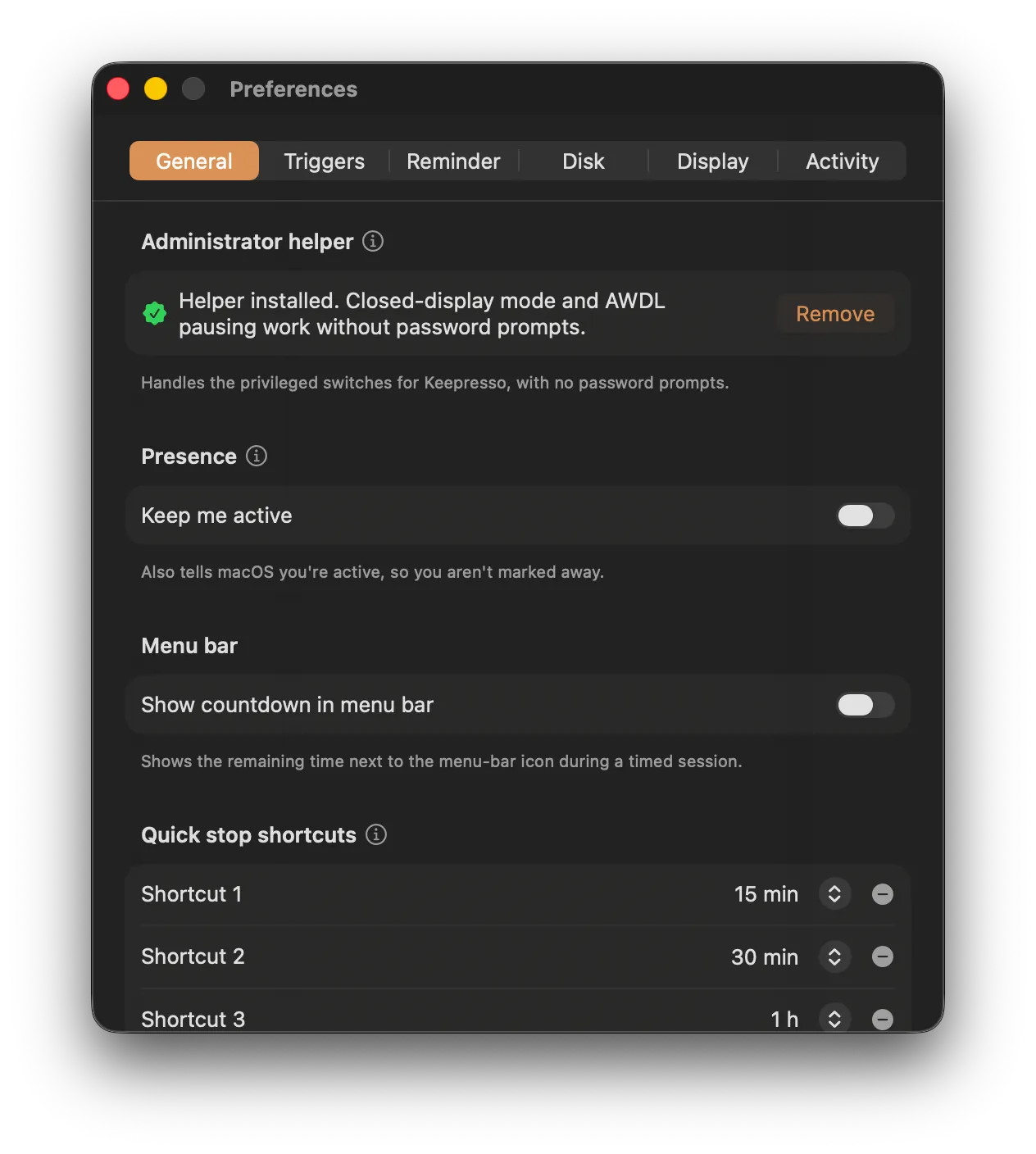
It only steps in once you have actually been idle for a few seconds, so it never types or nudges while you are using the Mac or gaming. It is off by default, and a heads-up worth knowing: some managed or corporate Macs are set up to flag simulated activity, so check your workplace's policy before you rely on it.
Choose the method your software notices
- Power / cursor warp is the default. It reports activity through macOS without posting a key or moving the visible pointer, and needs no extra permission. Start here.
- F15 every 60 seconds covers software that only watches keyboard events. Most keyboards have no physical F15 key, so it is usually the safest key method.
- Shift every 60 seconds posts a modifier without typing a character.
- Specified key records and posts the key you choose. Prefer a function key or modifier: a letter or number can type into the frontmost app.
- Mouse move posts a one-pixel movement every 60 seconds for software that watches the pointer.
The key and mouse methods need Accessibility access. Keepresso requests it only after you select one of those methods, never merely because the app launched. If the default method already works for your VDI or chat app, leave it there and no permission is needed.
What it keeps happy
- Teams and Slack presence. Your dot stays Active instead of turning to Away the second the mouse goes still, so people see you as around when you are at your desk but not typing.
- VDI and remote-desktop sessions. Citrix, VMware Horizon, Microsoft Remote Desktop, and similar clients often disconnect or lock on an idle timeout. Keep me active keeps the session live so a long read or a background job does not kick you out.
- Corporate logout timers. Idle-based auto-logout and screen-lock policies stop firing while a session is on, so you are not signed out mid-task.
Why the default is not a mouse jiggler
The old trick is an app that fakes mouse movement or keystrokes every few seconds. It is crude, it can interfere with the work you are doing, and it never sits right on a machine doing real work.
The default method reports activity to macOS the way the system expects, with no visible cursor movement, no typed key, and no extra permission. The optional key and one-pixel mouse methods are there for software that ignores that signal, and Keepresso labels their permission and behaviour before you choose them.
Pair it with the rest
- Put it on a schedule. Add a schedule trigger for your work hours so it only runs 9:00 to 18:00 on the days you choose, and stands down after.
- Keep a laptop safe. Turn on battery auto-pause so a session cannot run a laptop flat while you are away from power.
- Script it. Start or stop it from Shortcuts, Raycast, or a URL if you would rather bind it to a hotkey or an automation.
Related
Get Keepresso
Free and open source, for macOS 14 and newer. Install it and keep your Mac awake on your terms.
More in Using Keepresso