Keep your Mac awake while a Bluetooth device is connected
Some sessions map neatly onto a Bluetooth device being connected: a game controller in your hands, headphones on for a long listen, a presentation remote paired for a talk. Keepresso can keep your Mac awake while a paired device is in range and step back once it disconnects, using the Bluetooth device connected trigger.
Add the trigger
- Open Preferences, Triggers and turn on Activate by triggers.
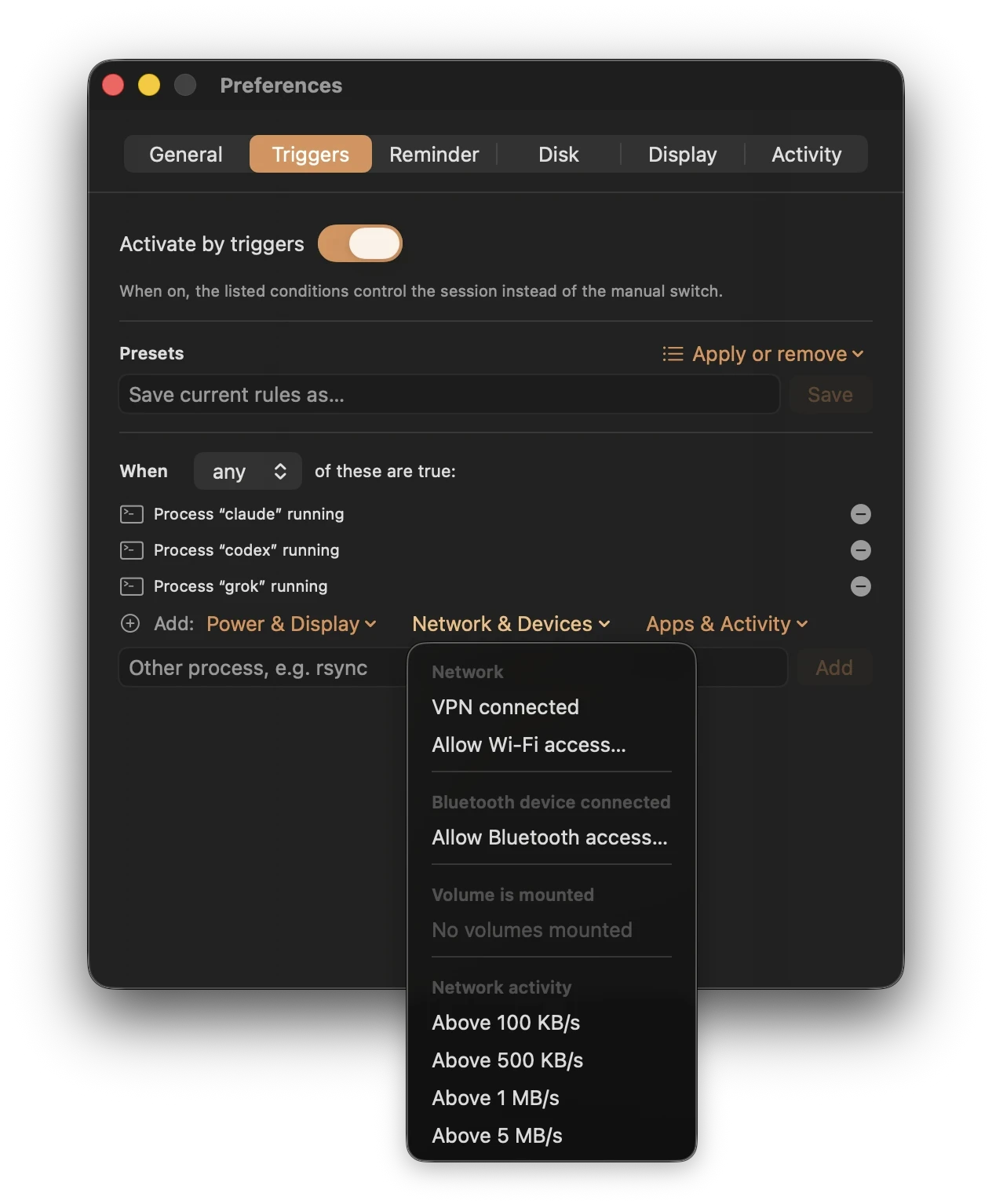
- Under Add, open the Network & Devices group and choose Bluetooth device connected.
- Keepresso asks for Bluetooth access the first time, so it can read which devices are connected. It only checks connection state; it never pairs, reads, or sends anything.
The grace period
When a device drops for a moment, Keepresso waits a 30 second grace period before ending the session. Bluetooth links flicker, and a controller or a pair of earbuds can disconnect for a second without you noticing, so the grace keeps the session from flapping on and off.
Combine it
Like every condition, this one can be mixed with others using any or all. A couple of common setups:
- Any of: a controller connected, or a game running, so either one keeps the Mac up.
- All of: headphones connected and audio playing, so it only holds awake during an actual listen, not whenever the earbuds are simply paired.
If a session is not behaving the way you expect, My Mac still goes to sleep has the checklist. For the full list of conditions, see smart triggers.
Get Keepresso
Free and open source, for macOS 14 and newer. Install it and keep your Mac awake on your terms.
More in Using Keepresso