Fix blurry Screen Sharing on a headless Mac
Connect to a Mac mini or Mac Studio with no monitor and the desktop looks soft and cramped: everything is slightly blurry, and there is nowhere near the space a real display gives you. Keepresso can fix that in software, with no hardware dongle and nothing to buy.
Why a headless Mac looks blurry
When no display is plugged in, macOS falls back to a synthesized 1920x1080, non-Retina framebuffer. On a modern Mac that normally drives a sharp Retina (2x) screen, that fallback is low resolution and not pixel-doubled, so text and UI render fuzzy over Screen Sharing or any VNC client. The Mac is fine; it just has no real display to describe, so it guesses low.
The usual fixes, and their cost
- An HDMI dummy plug. A cheap dongle that pretends a monitor is attached, so macOS offers proper resolutions. It works, but it is another thing to buy, carry, and leave stuck in a port.
- A paid display utility. Some apps add virtual displays as a paid feature.
Keepresso's headless virtual display
Keepresso includes an experimental headless virtual display. Turn it on, pick a resolution, and enable HiDPI, and it creates a HiDPI virtual display that presents a crisp, pixel-doubled desktop, so Screen Sharing and VNC look sharp, the way a real Retina display would. No dummy plug, no kext, no extra purchase.
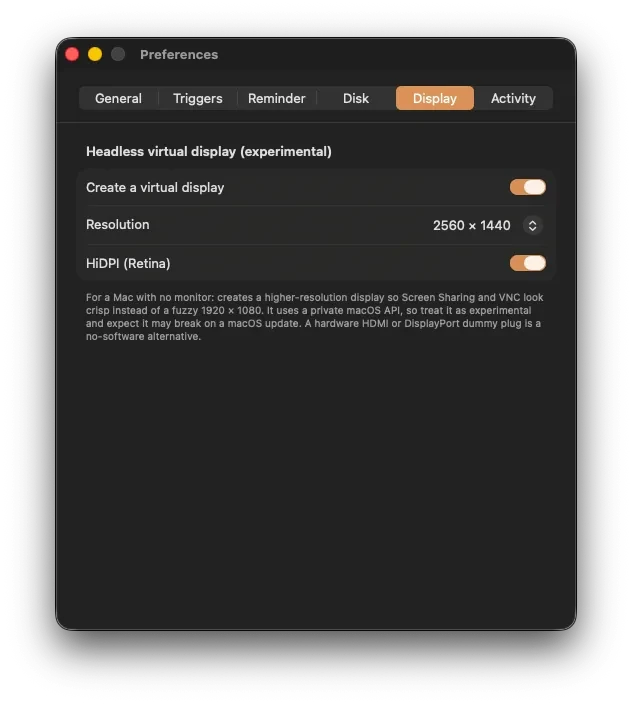
It uses the same private macOS display API that tools like BetterDisplay use to create virtual screens, so there is no driver to install.
Good to know
- It is off by default and marked experimental. Because it relies on a private macOS interface, a future macOS update can change or break it; if that happens, the option fails safe rather than causing trouble.
- It is only useful on a genuinely headless Mac, one with no physical display attached. With a real monitor or a dummy plug already present, you do not need it.
- If you would rather not depend on a private API at all, a hardware EDID dummy plug is the zero-software alternative and does the same job.
Pair it with staying awake
A headless Mac also needs to not sleep and to come back after a reboot. Set that up with the headless Mac checklist.
Get Keepresso
Free and open source, for macOS 14 and newer. Install it and keep your Mac awake on your terms.
More in Headless & remote