Keepresso widgets and the Control Center toggle
The menu bar covers the day to day, but you do not always want to click into it just to check a timer. Keepresso adds two lighter surfaces: native widgets and a Control Center toggle.
Desktop and Notification Center widgets
On macOS 14 and later, Keepresso provides widgets you can place on the desktop or in Notification Center. They show whether a session is running and, for a timed session, how long is left, updating live so the time-left is glanceable.
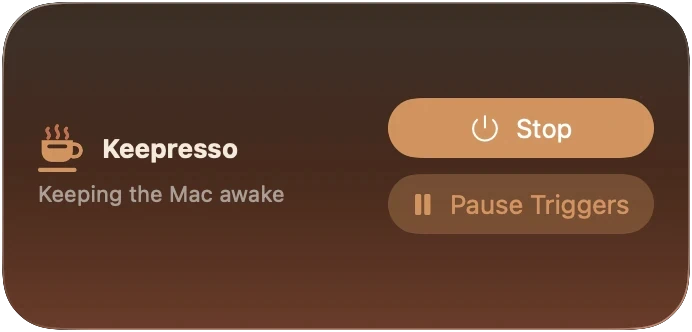
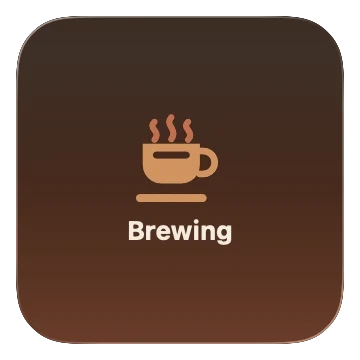
The medium widget also carries Stop and Pause Triggers buttons, so you can end a session or step the trigger engine aside without opening the menu. The small square widget is a compact status glance.
To add one: on the desktop, right click and choose Edit Widgets (or click the date and time in the menu bar to open Notification Center, then Edit Widgets at the bottom). Find Keepresso, pick a size, and drop it where you want it.
Control Center toggle
On macOS 26, Keepresso adds a toggle to Control Center, right beside Wi-Fi and Focus, so you can start or stop a session from the same place you flip the rest of the system.
To add it: open System Settings, Control Center, scroll to the list of available modules, and add the Keepresso toggle. It then appears in Control Center in the menu bar, and you can drag it into the layout you prefer.
The menu-bar cup stays the home for everything else: durations, closed-display mode, triggers, and the links into Preferences.
Get Keepresso
Free and open source, for macOS 14 and newer. Install it and keep your Mac awake on your terms.
More in Using Keepresso